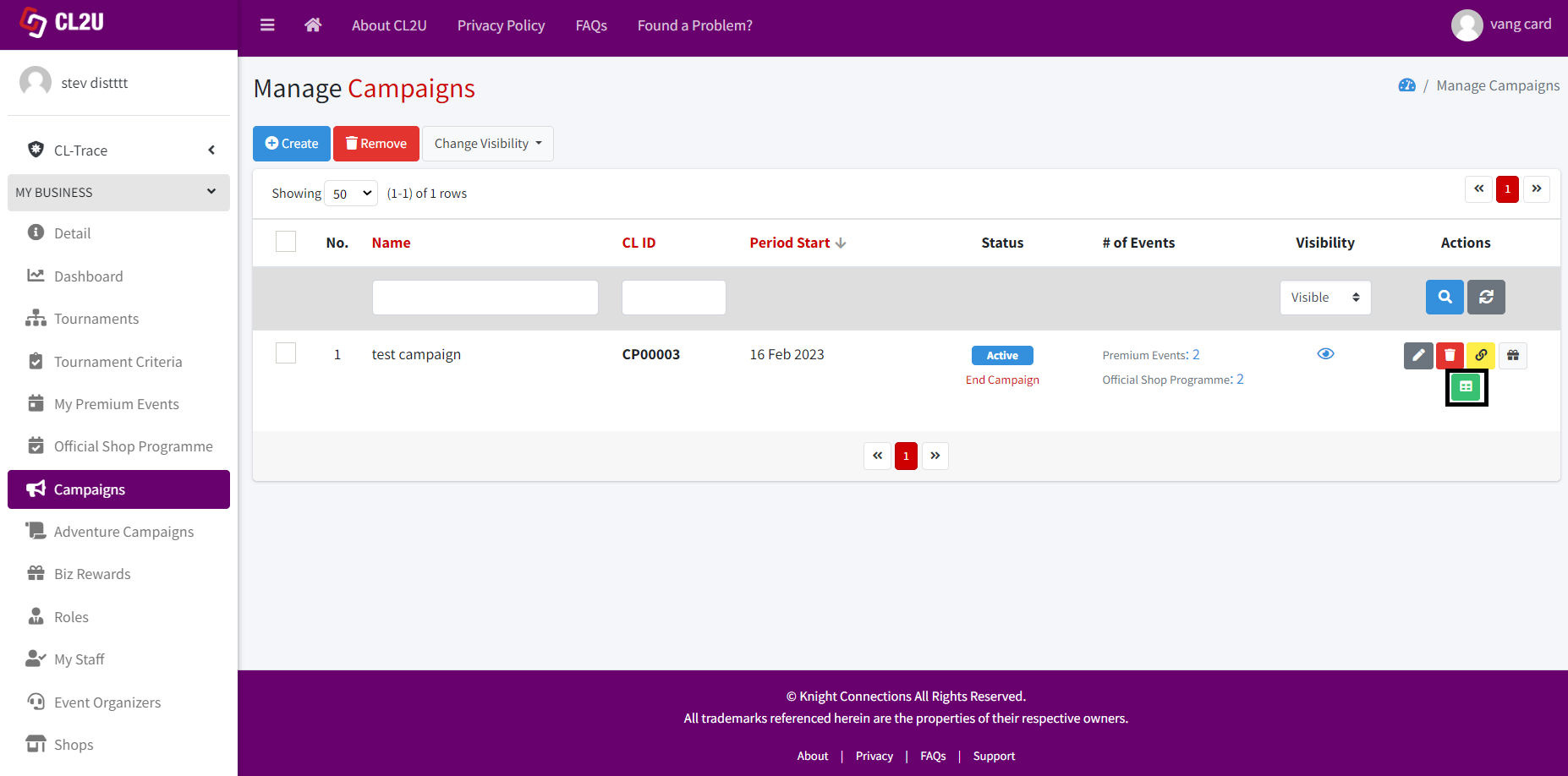
Campaigns are like a place to store all official events (official shop programmes) and non-official events (premium events). So, when a user clicks on a campaign, all upcoming tournament schedules that are included in all events selected when creating the campaign will appear.
A, Create Campaigns
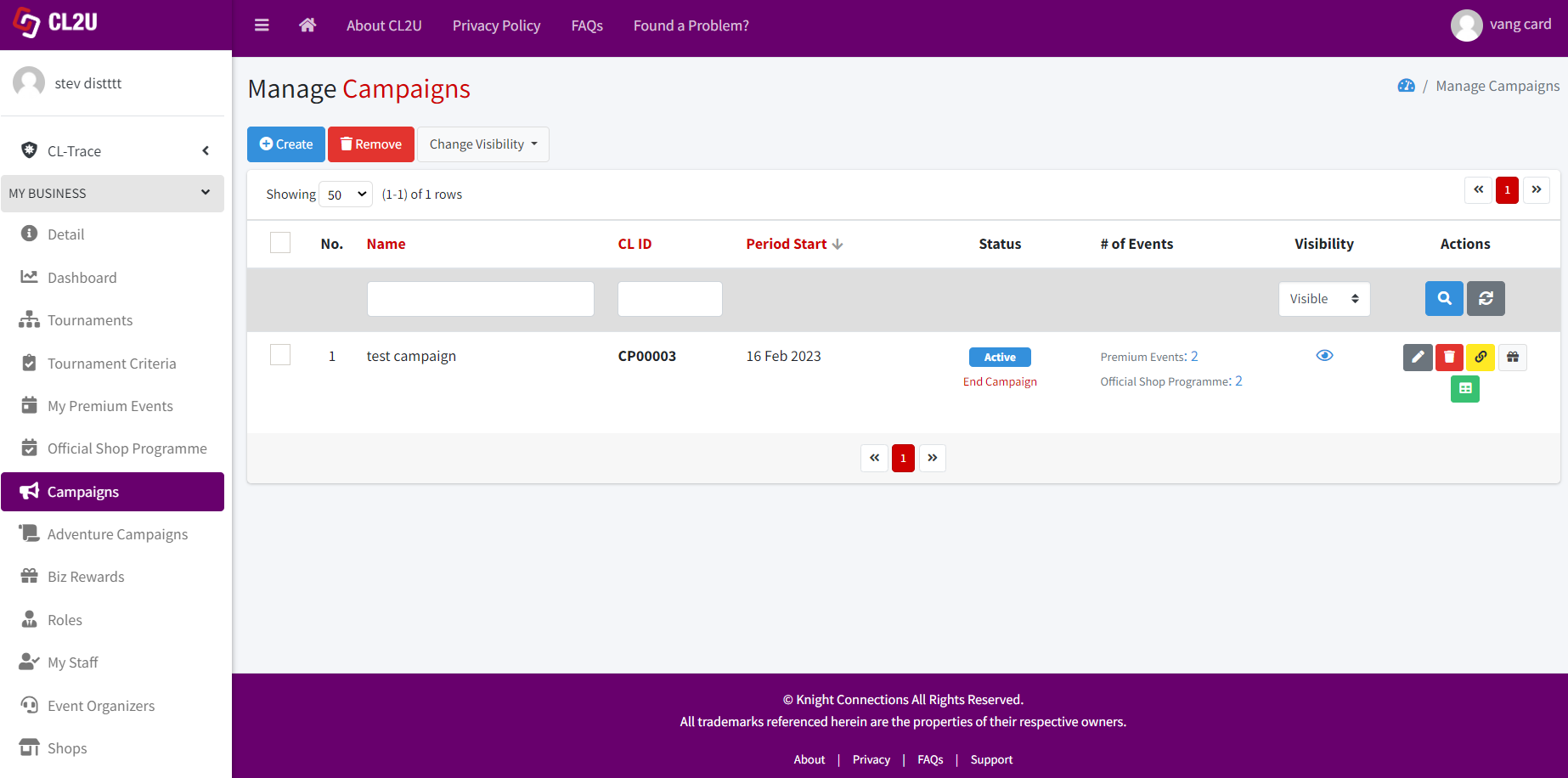
- Go to my business -> campaigns and click on the ‘Create’ button.
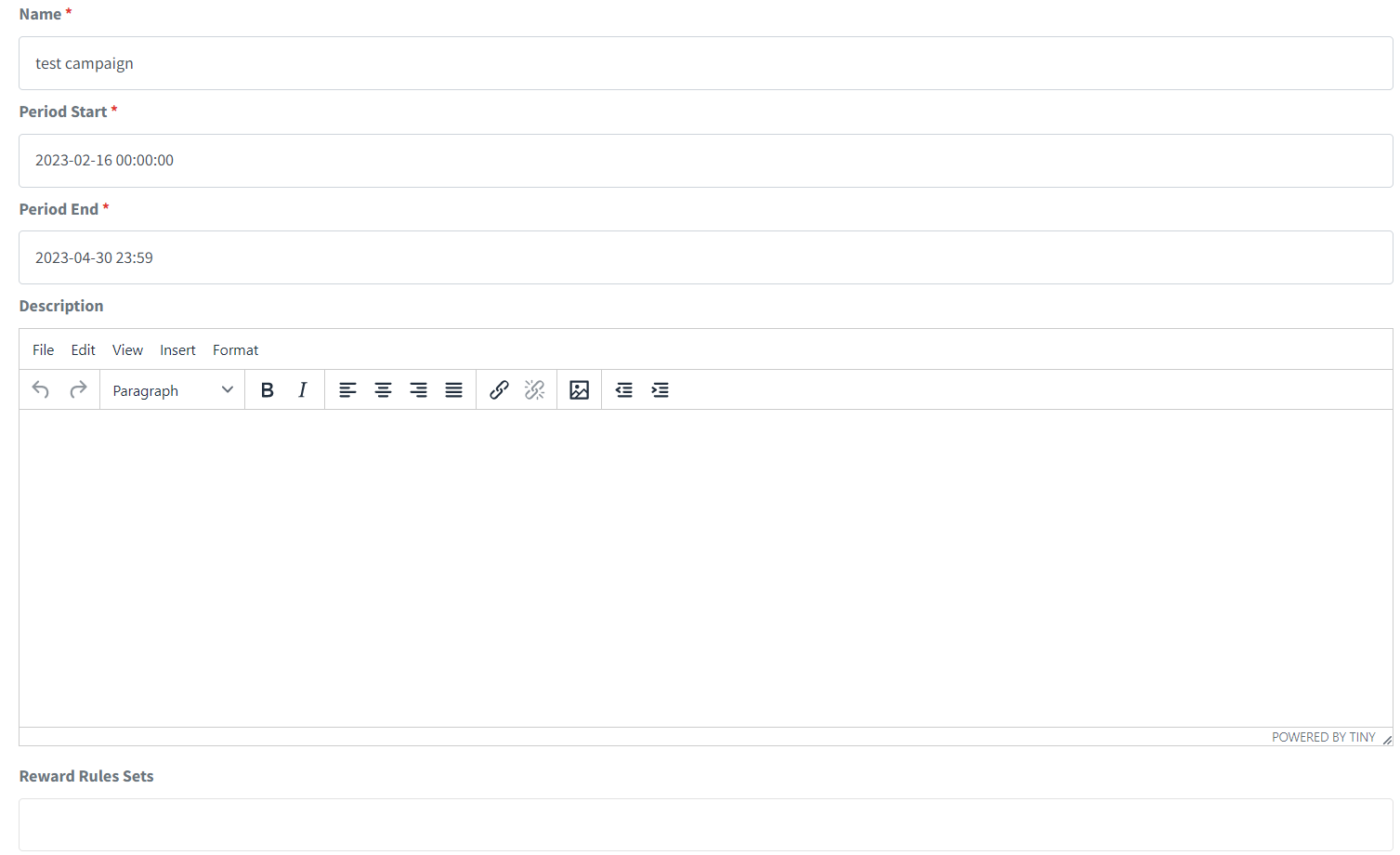
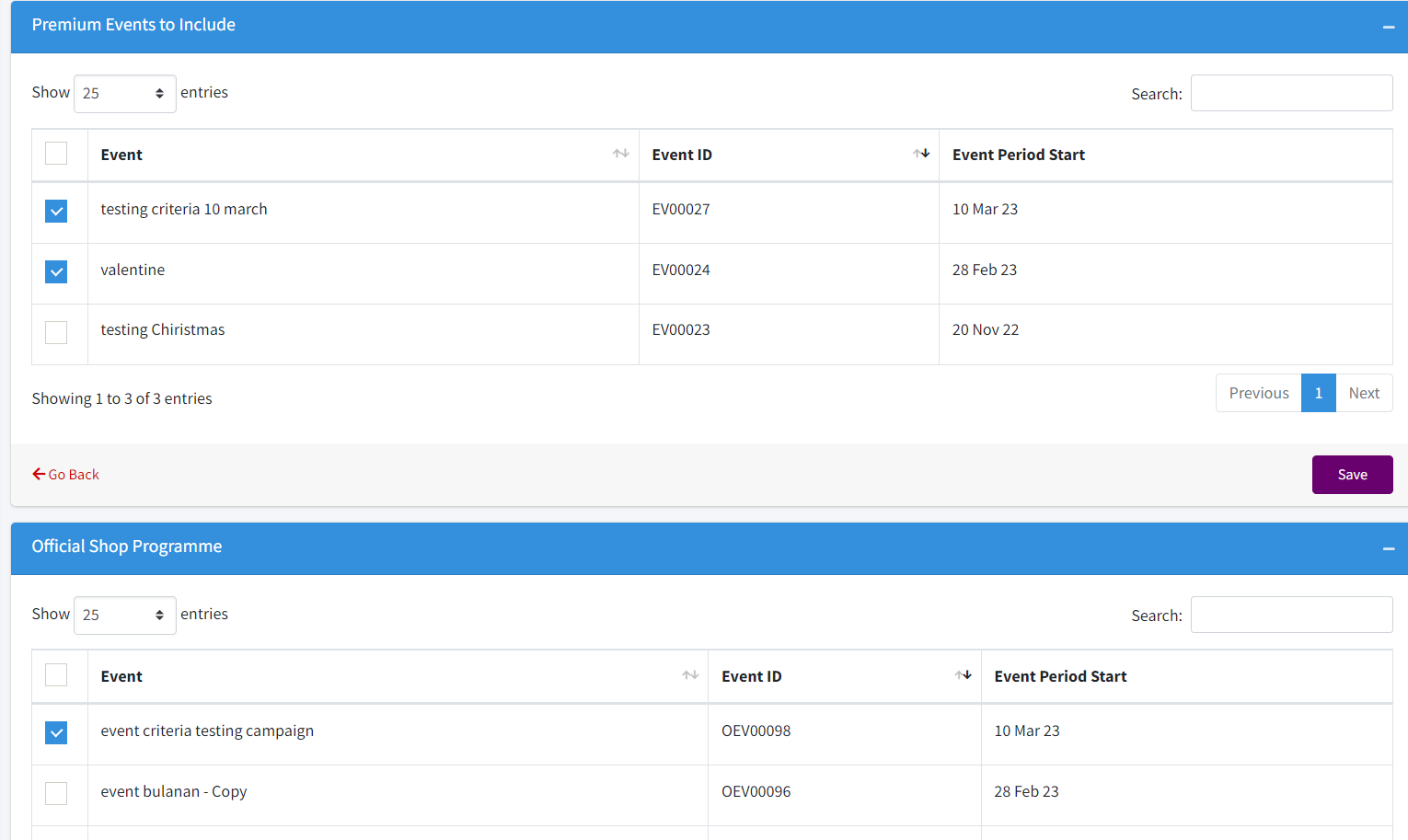
- You can refer to the image provided as an example and enter the relevant data accordingly. Pick the official events (official shop programmes) and non-official events (premium events) that want to be add. Once you have completed all the required fields, click ‘Save’ to create your campaign.
B. View the Campaign in public page
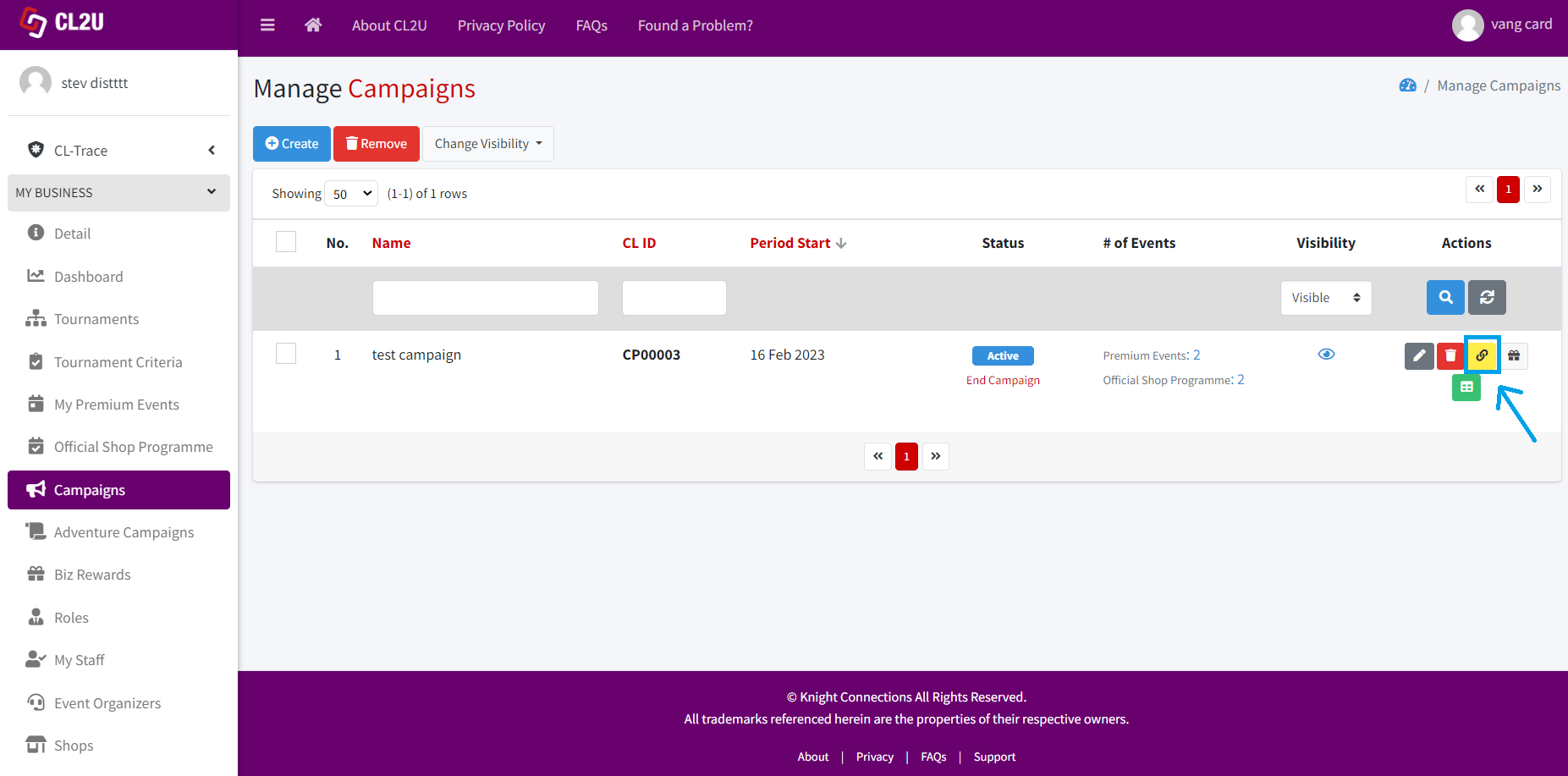
- Click this button.
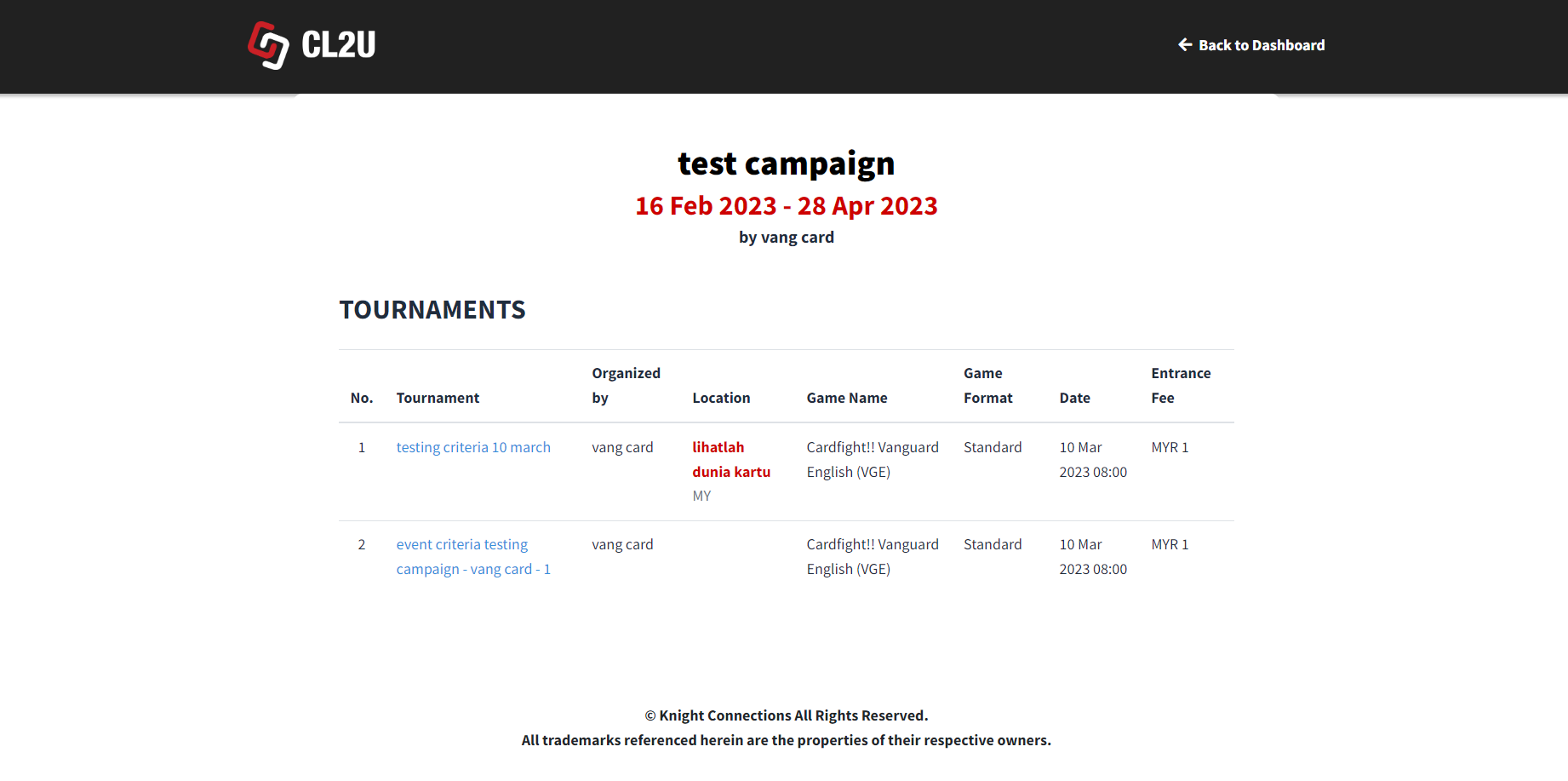
- Then, this page will appear. The tournament number 1 is from a non-official event (premium event) and the tournament number 2 is from an official event (official shop programme).
C. Edit & Delete Campaigns
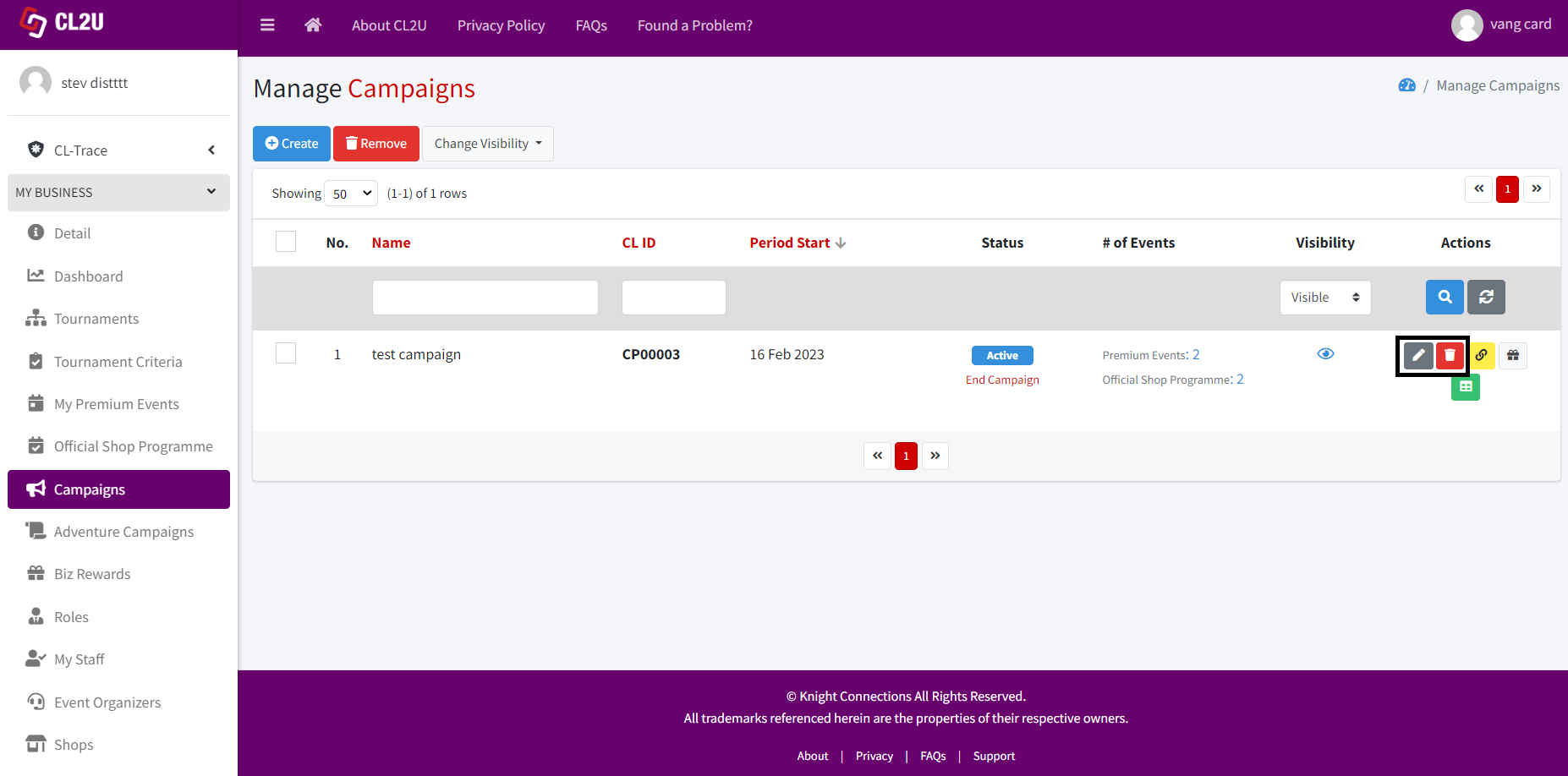
To edit the campaign, simply click on the pencil button. Then, make the necessary changes and click the ‘Save’ button to apply them.
To delete a campaign, click on the trash button. A prompt will appear asking you to confirm the deletion. Click ‘OK’ to proceed with the deletion or ‘Cancel’ to abort it.
D. Assign the Rewards to Players Based on the Campaign Final Standings
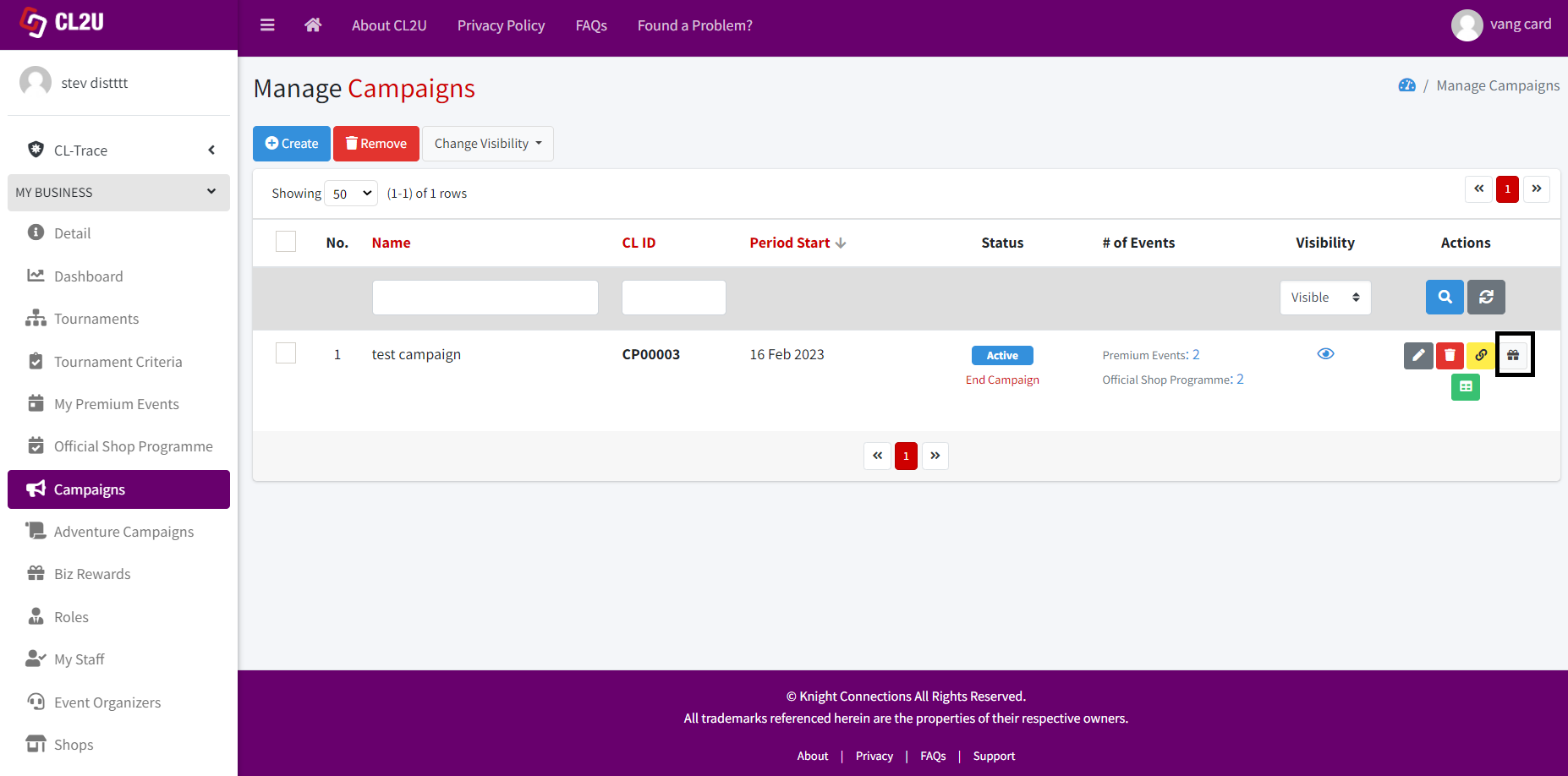
To assign the rewards to players, simply click on the gift button.
E. Generate a Report
To generate a report, simply click this button.