CL2U Logo
About CL2UPrivacy PolicyFAQsContactLOGIN
⌕

CL2U Additional Guide for Distributors

  • 📁Saved Business⌄
    • Create A New List for Your Favorite Business
    • Add a Business into Your Saved Business List
    • Manage Your Saved Business List
    • Remove a Business from Your Saved Business List
  • 📁Official Shop Programme⌄
    • Create an Official Shop Programme
    • Add a Shop or an Event Organizer to the Official Shop Programme You Created
    • Add Tournament to Official Shop Programme
  • 📁Shops⌄
    • Manage Shops Selling Your Products
    • Give Official Badge to the Shops
  • 📁Staff⌄
    • Create Roles for Staff
    • Add Staff
    • Edit Staff
    • Delete Staff
    • Manage the Data Access Limitation for the Staff
  • 📁Adventure Campaigns⌄
    • Manage Adventure Campaign
    • Create Adventure Campaign
    • Edit Adventure Campaign
    • Delete Adventure Campaign
  • 📁Campaigns⌄
    • Manage Campaigns
  • 📁Tournament Criteria⌄
    • Manage Tournament Criteria
    • How to Apply Tournament Criteria
  1. ⌂
  2. Home
  3. ›
  4. Docs
  5. ›
  6. CL2U Additional Guide for Distributors
  7. ›
  8. Adventure Campaigns
  9. ›
  10. Edit Adventure Campaign

Edit Adventure Campaign

▣
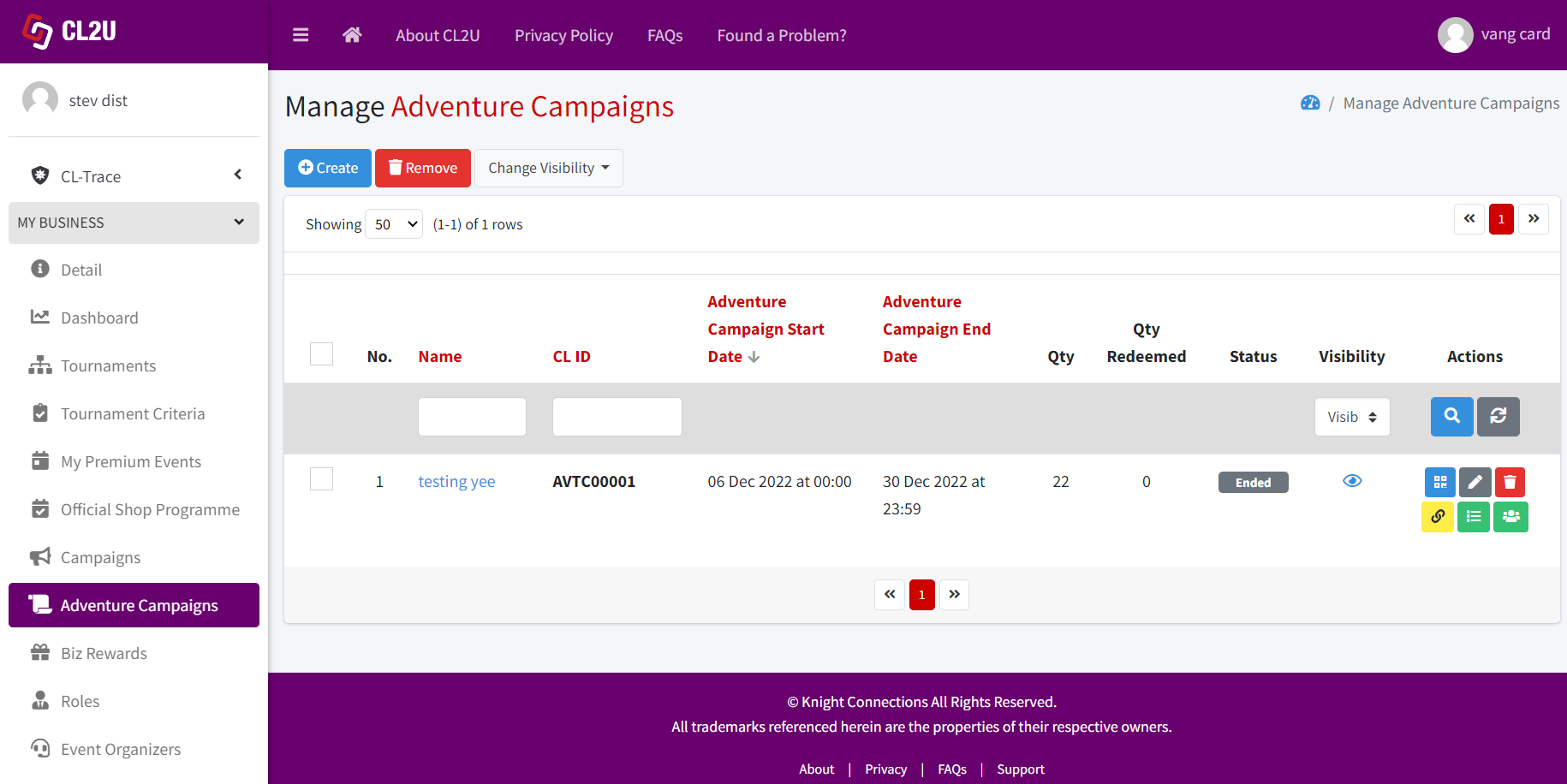
  1. Choose the adventure campaign that you want to edit, click pencil icon.
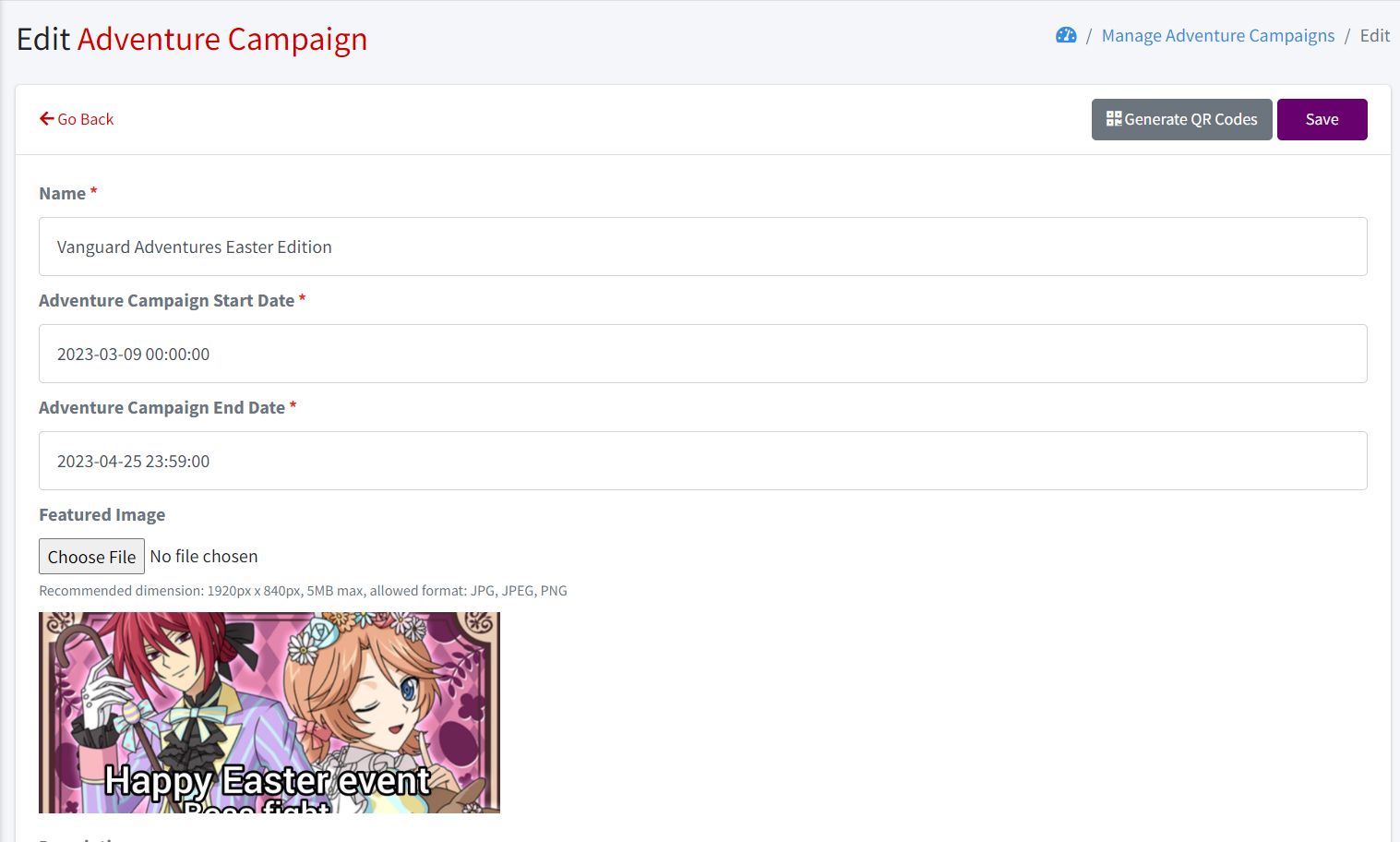
  1. You can edit the name, image, date, description, and the QR Code rule. Once you have finish edited, click “Save” button to save your changes.

Still stuck? How can we help?Updated on March 10, 2023
About CL2UPrivacy PolicyFAQsContact

© Knight Connections All Rights Reserved.

All trademarks referenced herein are the properties of their respective owners.

⌃